Sign in and open My orders. It lists every order on your account, newest first, with its status.
Click an order to pay it, read its delivery report, download the PDF, create a share link, or start the same order again with Order this again.
My orders
Each row shows the order reference, what the order contains, its date, its amount and its status: Requested, Awaiting payment, In production, In QA, Delivered or Cancelled. "What does my order status mean?" explains each one.
- Pay now appears next to an order waiting for payment.
- View the delivery report appears next to a delivered order.
The Overview shows your five most recent orders. Click View all → for the full list.
Is an order missing? Orders placed with your account's email address appear once that address is confirmed. See "How do I create an account and sign in?".
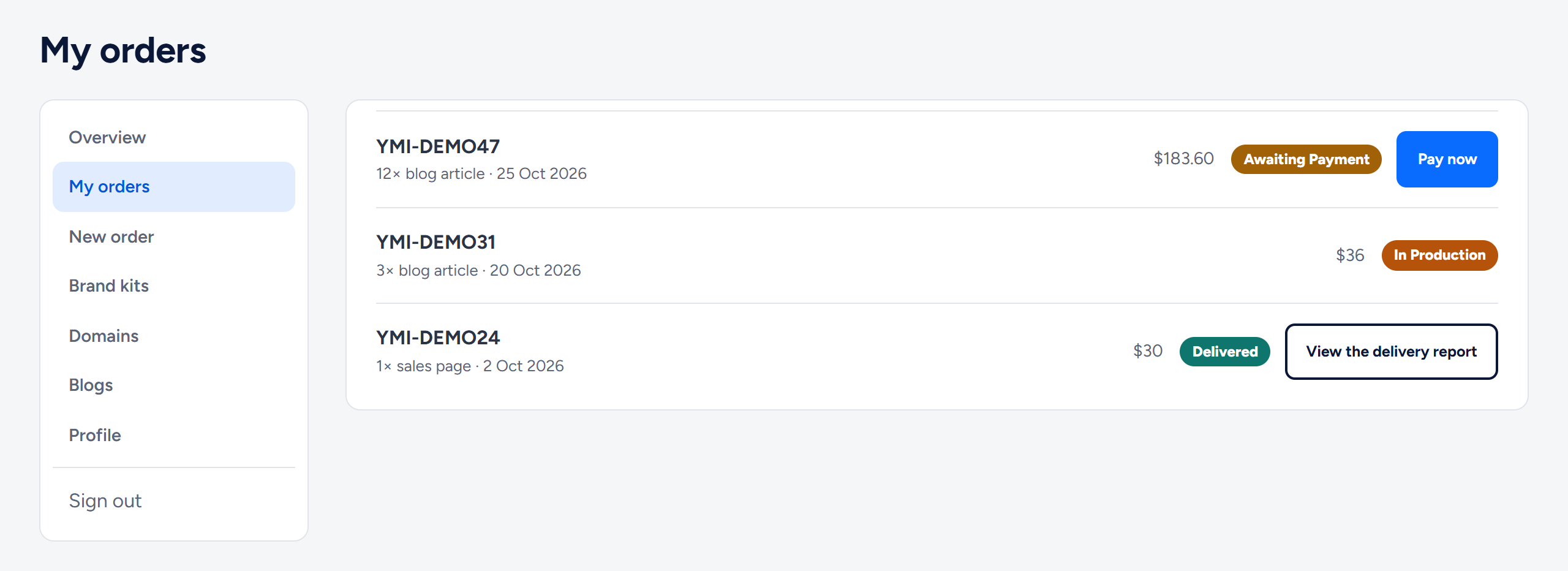
The pictures in this article show an example account with illustrative orders.
An order's page
Until an order is delivered, its page shows:
- the status, top right
- What you ordered: the items, the pack and the service level (Standard, Pro or Ultimate).
- any discount code and the amount it took off
- the total: Estimated total, or Agreed total once we have agreed a price with you
- a line on what happens next
- Order this again
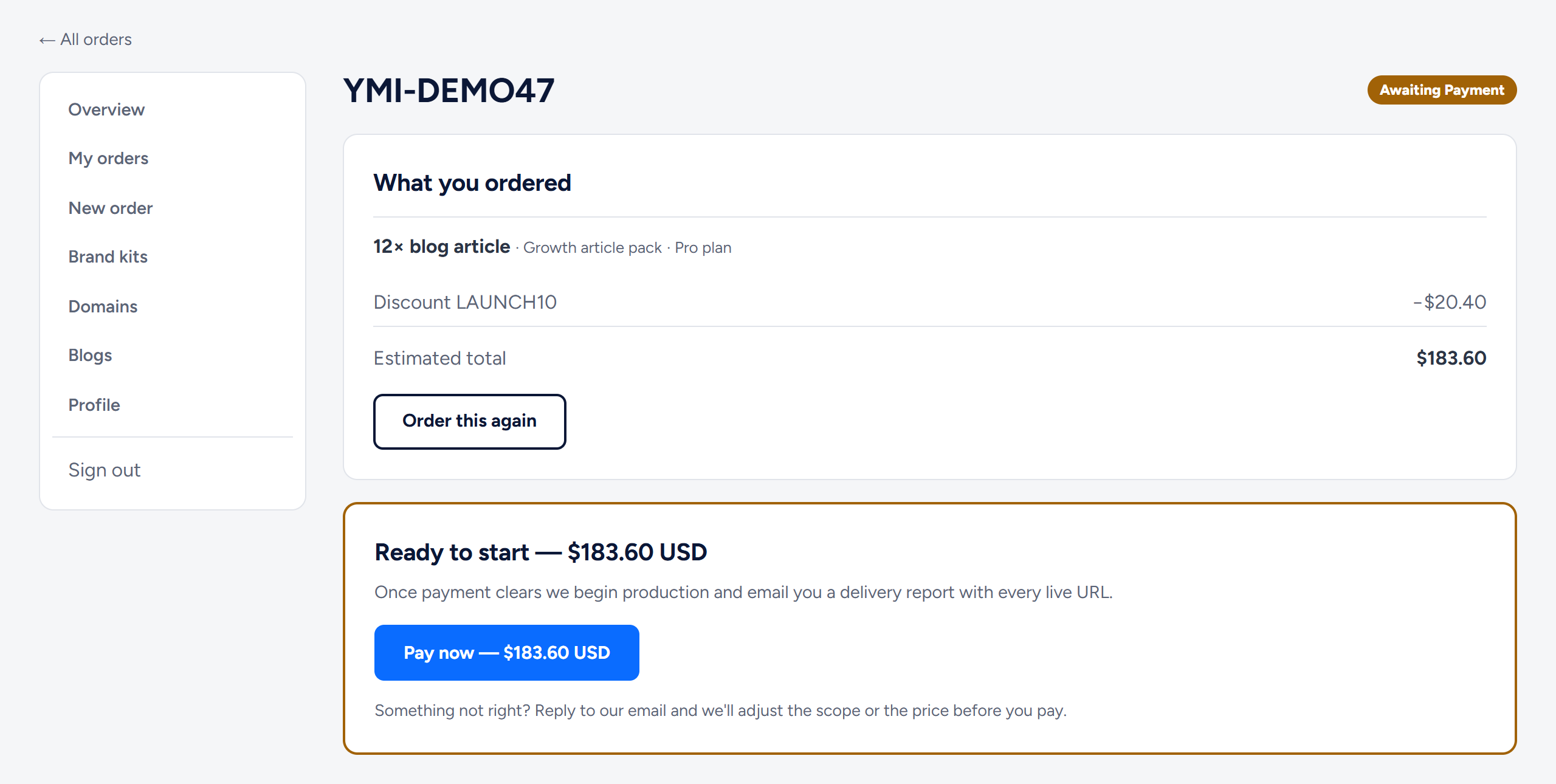
Paying an order you have not paid yet
An order awaiting payment shows a Ready to start box with the amount and Pay now. Click it to open the secure hosted checkout. The same button is in My orders and at the top of the Overview.
Production starts once your payment clears. Want to change the scope or the price first? Reply to our email before you pay. See "How do I pay, and what if a payment does not go through?".
A delivered order's report and PDF
A delivered order opens its delivery report inside your account: every page and article we published, each with its live link. Click Download PDF at the end of the report to save a copy. Reports and their PDFs never expire.
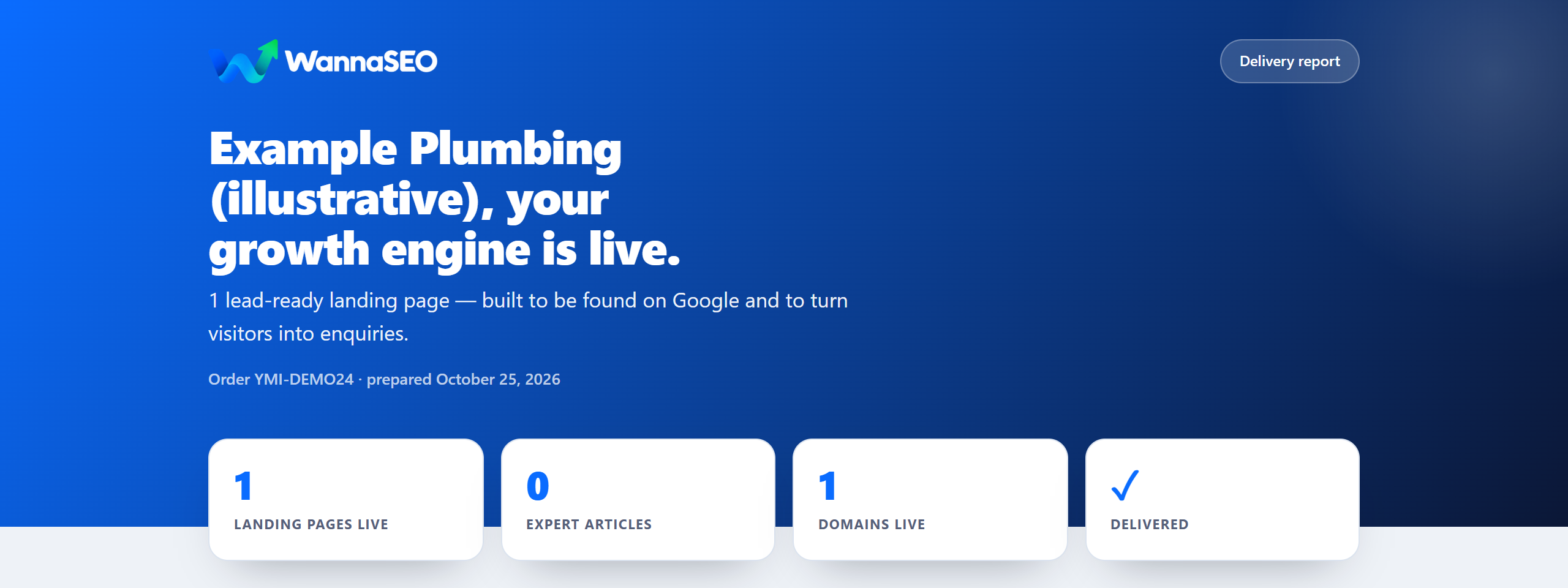

Creating a share link
- Open the delivered order and scroll to the end of the report.
- Click Create a share link. The order's Report link page opens, with your link made.
- Click Copy next to the link. The page shows the same link whenever you come back: click Report link next to the order in My orders.
Anyone with the link can open the report without signing in, and it keeps working until you replace or revoke it, so only send it to people who should see the work. Make a new link replaces it: the old link stops opening at once. Revoke stops it without a replacement. The link in your delivery email is separate, and these buttons do not change it. On the Ultimate level, or with the $10 white-label add-on, the same page also makes a white-label link, which opens the report on your own report domain, in your brand kit.
"Order this again"
- On the order's page, click Order this again.
- The order form for that service opens with the same pack and service level already selected.
- Check them, continue through steps 2 and 3, and click Review & pay.
Nothing is ordered until you submit the form, and you see the exact total before you pay. The form uses today's prices. Your brief is not copied, so open Add more details in step 3 and tell us what this order should cover. LAUNCH10 is for a first order only, so it no longer applies once you have paid for an order or used a code on one.
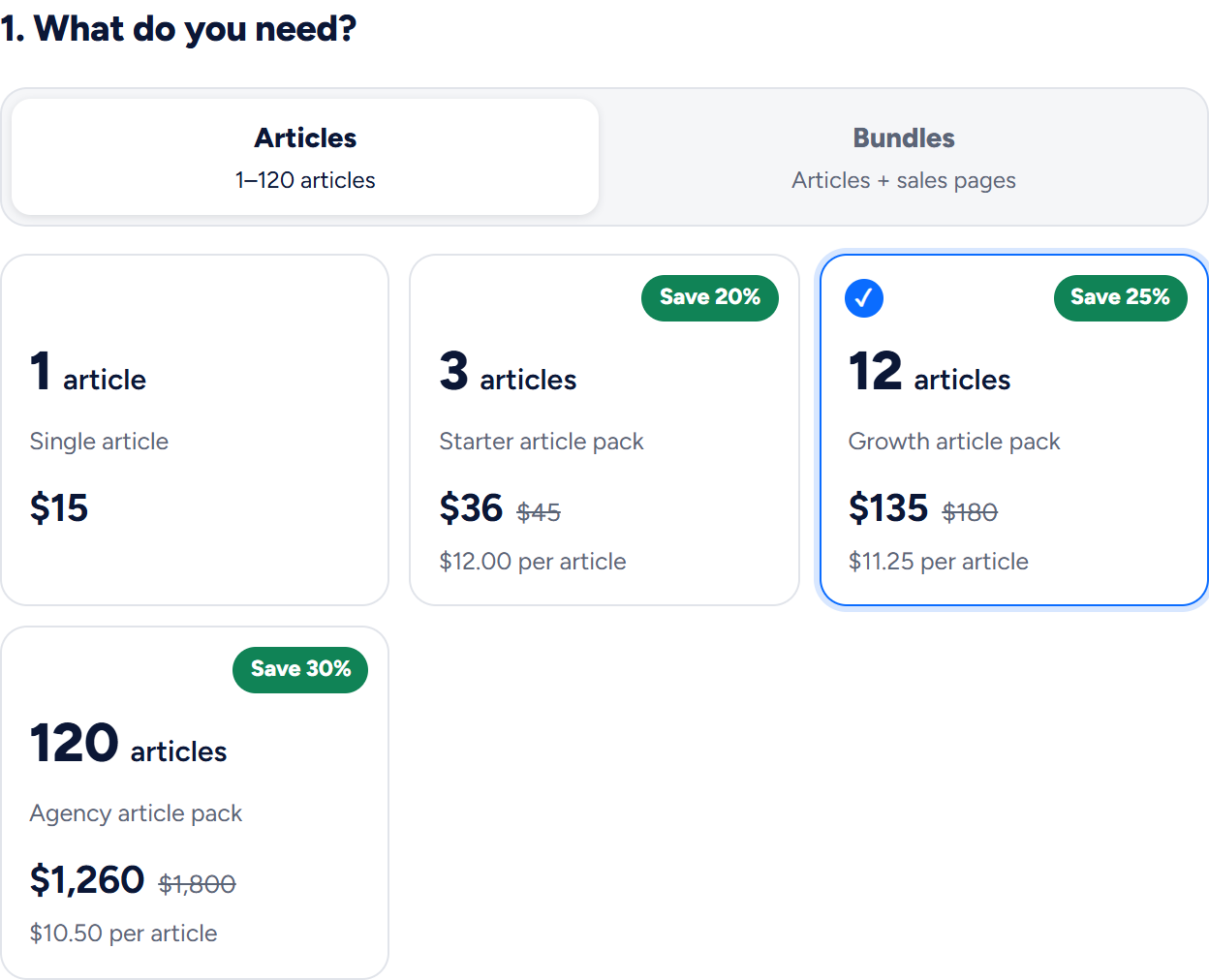
A delivered order has no Order this again button yet, because it opens its report instead. To repeat it, click New order in the account menu, which opens the pricing page, and choose the same service, pack and service level.
Related articles
- What is in my WannaSEO account?
- What does my order status mean?
- The delivery report: web page, PDF and list of links
- How do I pay, and what if a payment does not go through?
- How do I place an order? The order form, step by step
Still stuck? Write to hello@wannaseo.com or use the chat on any page of wannaseo.com. A person replies within about one business day.