Click Sign in at the top of wannaseo.com, then Create an account. You need your name, your email address and a password, and the account is free. Confirming your email then brings in the orders you placed before you signed up.
Do I need an account?
No. You can order, pay and claim the free start without one. Everything about an order goes to the email address you type in the order form.
An account adds My orders with each order's status, delivery reports and PDFs, Order this again, brand kits, and your own domains and dedicated blogs to pick in the order form.
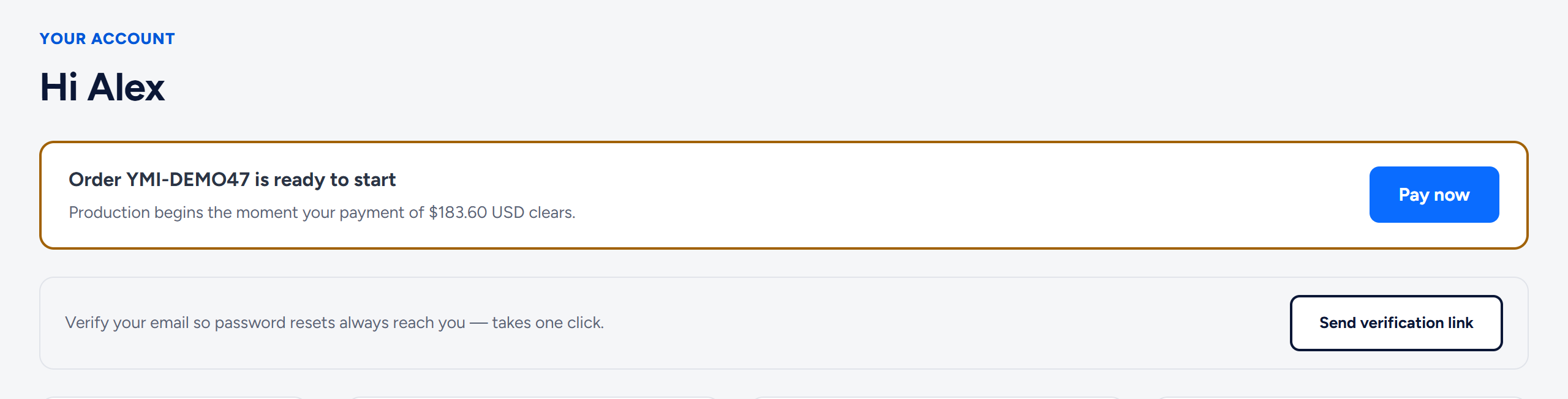
If you have an account, sign in before you start an order. Step 3 of the order form reminds you, but signing in from there takes you to your account and you start the order again.
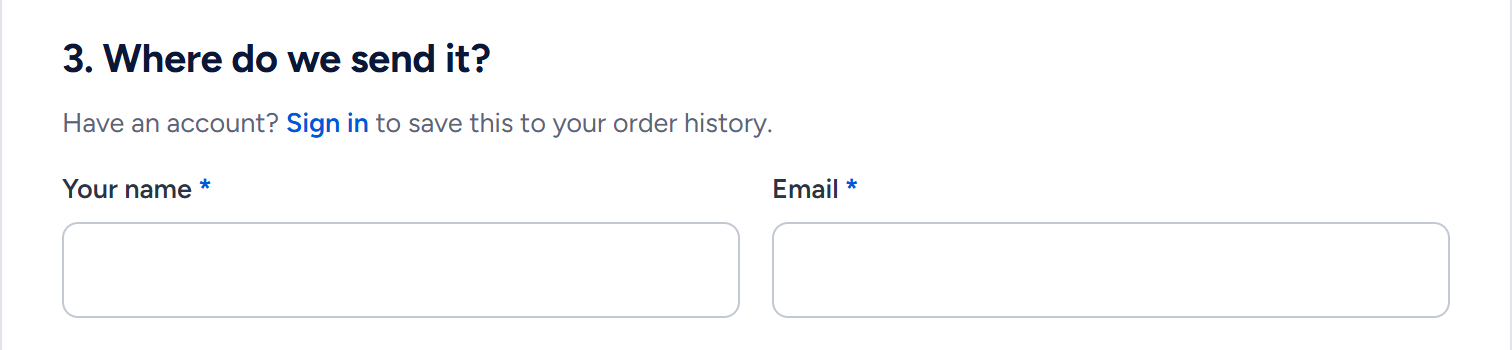
Create your account
- Click Sign in at the top of wannaseo.com (on a phone, open Menu first), then Create an account. You can also go straight to wannaseo.com/register.
- Fill in Your name and Email. Business name and Phone are optional.
- Choose a password of at least 8 characters and type it again under Confirm password.
- Click Create account. A security check runs in the background first, so the button may wait a moment, and now and then it asks you to tick a box.
You are signed in straight away and land on your account's Overview. If that email already has an account, the form says so: sign in instead, or reset the password.
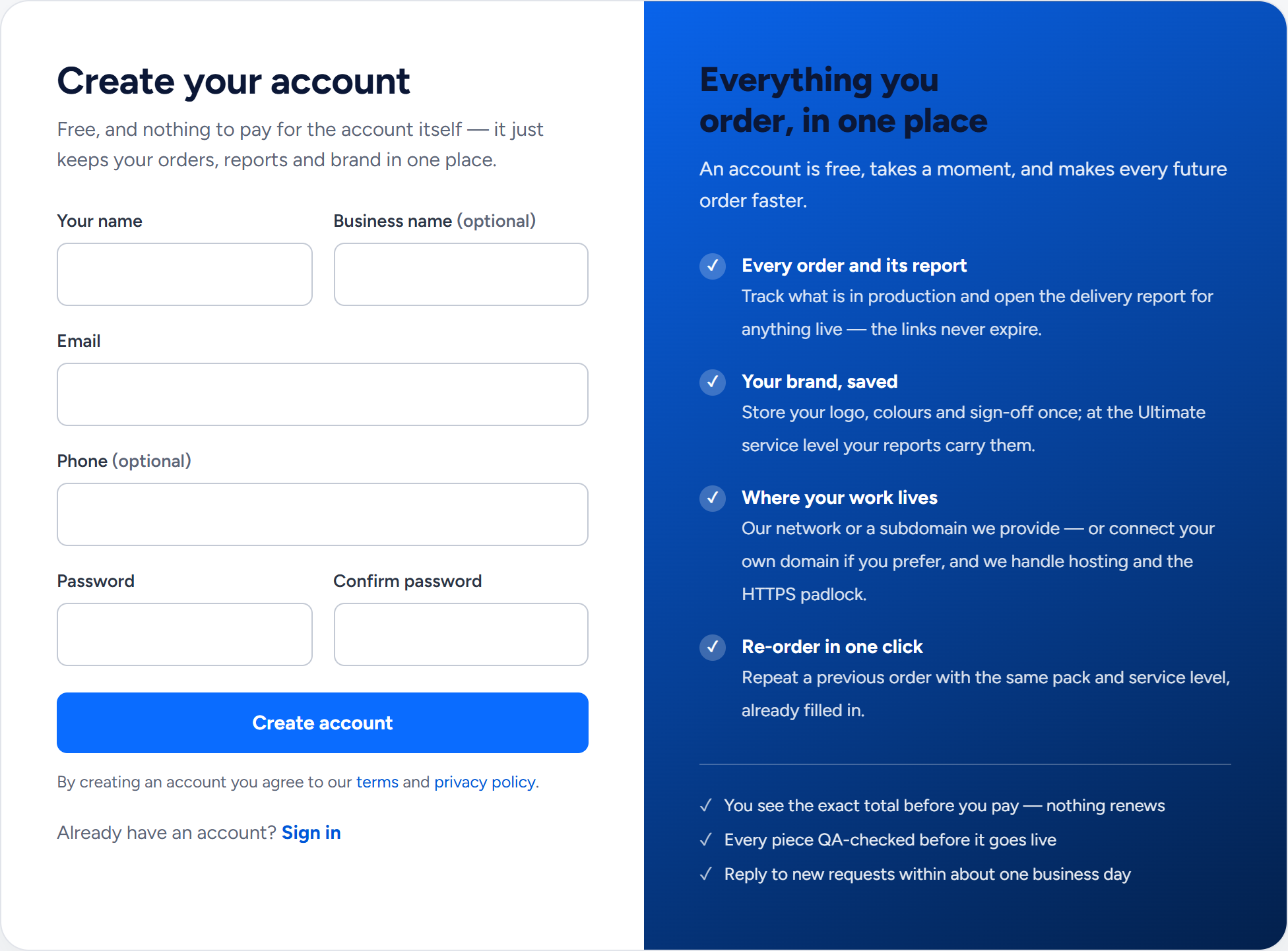
Confirm your email
We email Confirm your WannaSEO email as soon as the account exists. It comes from WannaSEO (hello@wannaseo.com). Click Confirm my email in it. The link works for 3 days, in any browser, even one where you are not signed in. If that browser is not signed in, you then see the sign-in page, and your email is confirmed all the same.
Confirming is optional and nothing is locked without it. It makes sure password resets reach an inbox you have proved is yours, and it moves your earlier orders into the account.
Link expired, or no email? The Overview shows Send verification link until you confirm, and so does Profile. An address that is not confirmed yet gets only a few emails a day from our forms, order confirmations included. If you placed orders with it today and nothing arrives, click the button again the next day.
The account pictures show an example account with illustrative data.
Orders placed before you signed up
Once your email is confirmed, the orders you placed with that address while signed out appear in My orders on their own, a free start included. From then on, an order placed with that address goes into your account even if you are signed out when you place it.
Orders placed with a different email address do not move across. Write to us with the order reference.
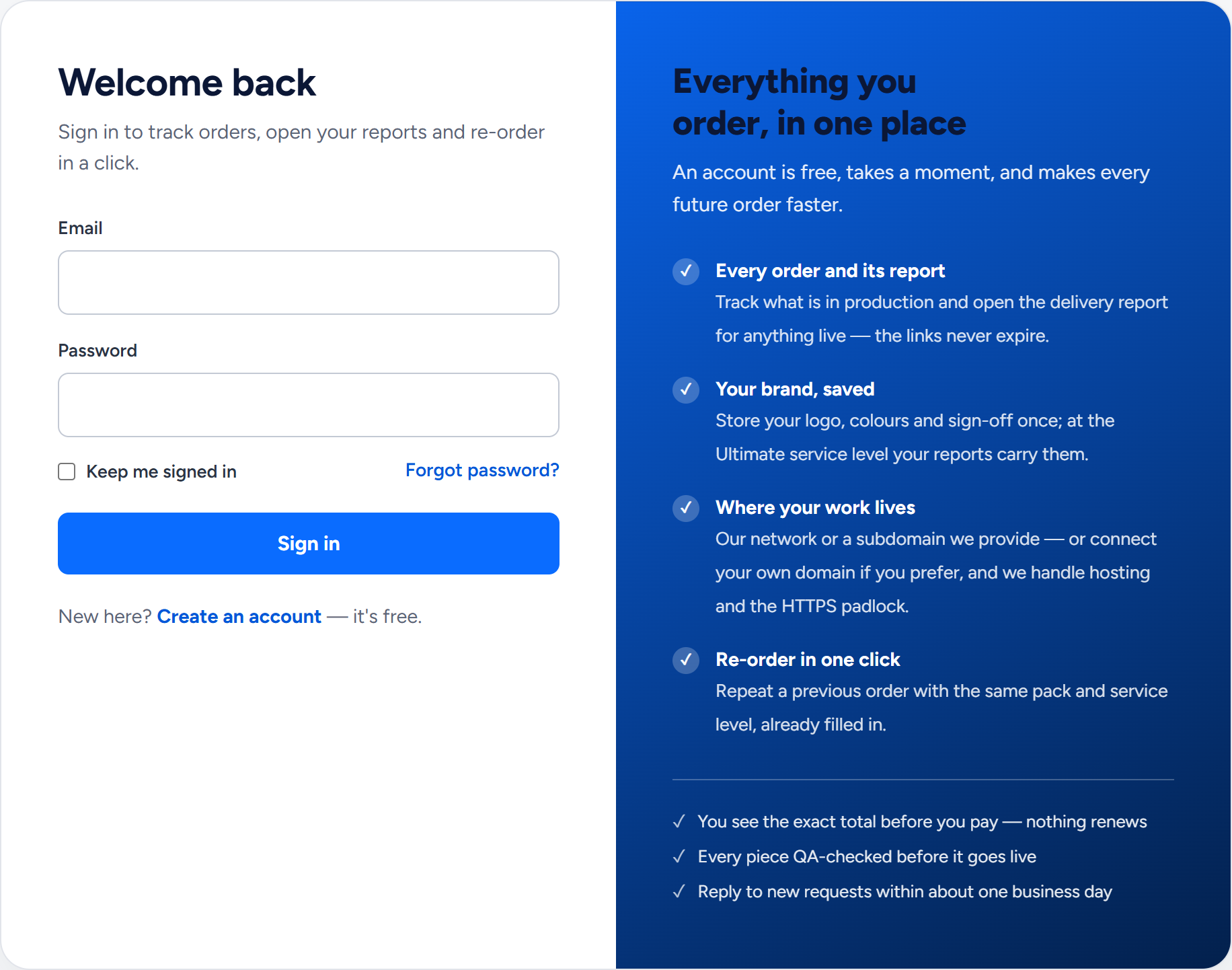
Sign in, and "Keep me signed in"
- Click Sign in at the top of wannaseo.com (on a phone, it is in Menu).
- Enter your email and password, then click Sign in.
Tick Keep me signed in to stay signed in on that browser, even after you close it, until you click Sign out. Use it on your own devices only. Once you are signed in, the link at the top reads My account.
"Those details do not match an account here" means the email or the password is wrong. After 5 wrong attempts, sign-in pauses for up to 15 minutes. Unsure? Use Forgot password?.
Change your email address
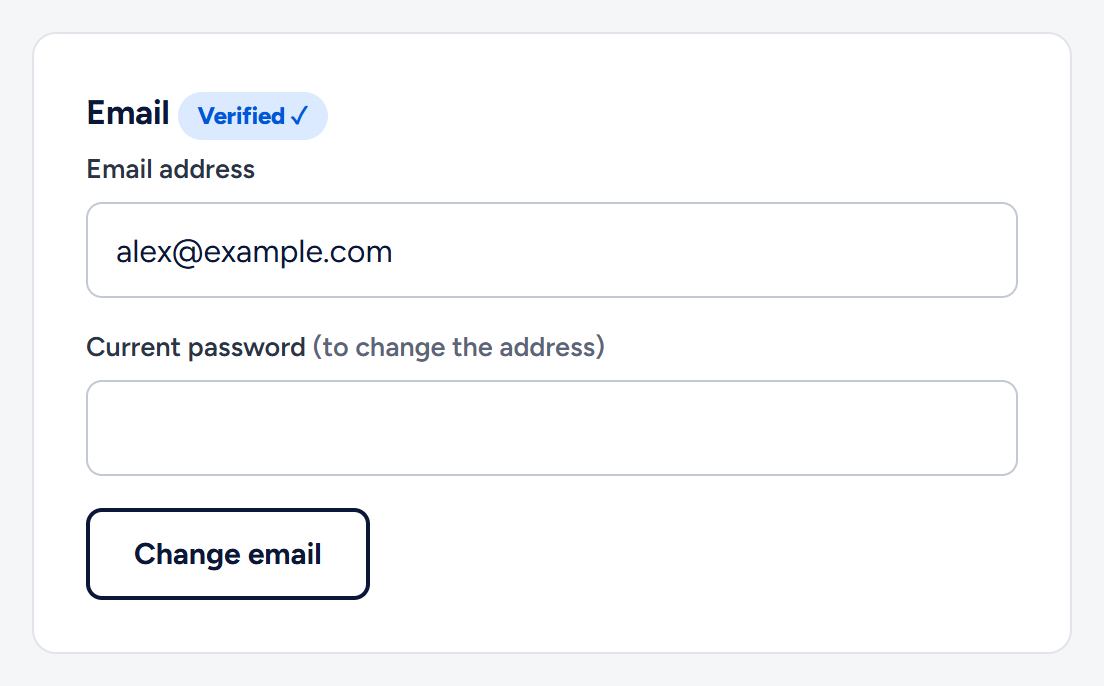
- Open Profile in the account menu.
- In the Email box, type the new address and your current password.
- Click Change email.
We send a confirmation link to the new address, and the badge reads Not verified until you click it. Emails about orders you have already placed still go to the address on each order. Reply to one of them to change it.
Sign out
Click Sign out at the end of the account menu. You return to the home page.
Related articles
- What is in my WannaSEO account?
- I forgot my password. How do I reset it?
- Where are my past orders, and how do I order the same again?
- Which emails will I get from WannaSEO, and what if one does not arrive?
- How do I place an order? The order form, step by step
Still stuck? Write to hello@wannaseo.com or use the chat on any page of wannaseo.com. A person replies within about one business day.